
The round-trip is what actually died
Before September 8, generating AI video for a Premiere edit meant leaving Premiere. You opened Firefly on the web or a standalone generator, wrote a prompt, waited, downloaded the file, dragged it back in, then fixed the resolution and framing so it matched everything else. Every gap-filler carried that tax.
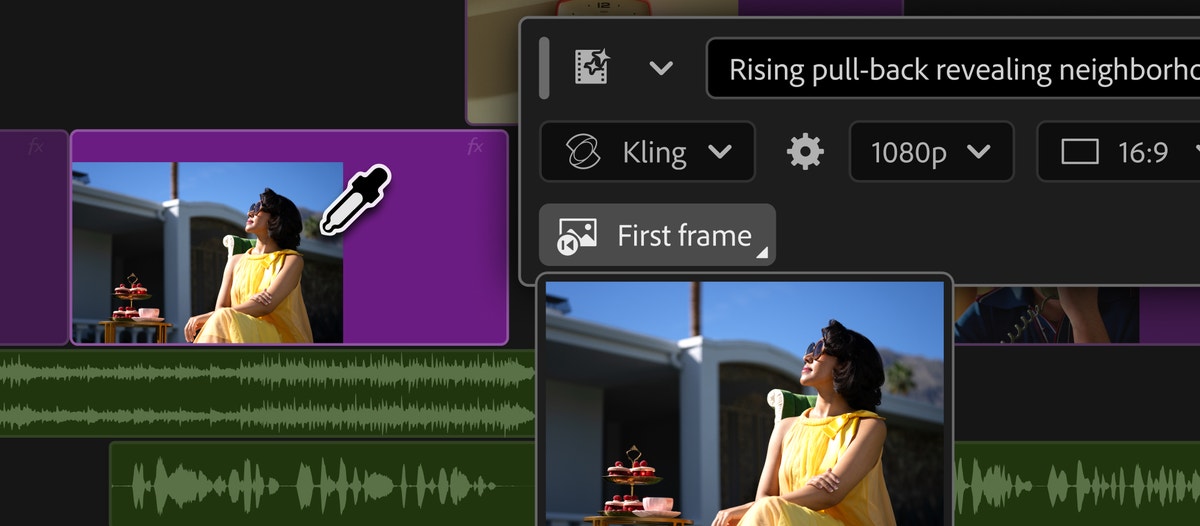
The Generative Media Tool collapses the loop. It sits in the toolbar where Generative Extend already lives. Draw a range on any track, describe the shot, pick a model, and the clip arrives sized to your sequence. Premiere samples reference frames from your timeline so the result inherits the color grade, lens character, lighting and aspect ratio of the surrounding edit. That last part is the real improvement. Nobody complained that generating was slow. They complained that conforming was slow.
The workflow, in the order you actually do it
Adobe's official docs describe a short sequence, and the order matters because it is where the cost control lives:
1. Select the Generative Media Tool from the Tools panel.
2. Drag across the timeline to mark the range where the shot should land, or double-click a gap. Premiere generates to the duration you marked, so decide the duration before you write the prompt.
3. Choose a model from the menu. The default is Veo 3.1.
4. Add reference frames. First frame anchors the start, Last frame anchors the end, Previous and Next pull from the clips on either side of a gap, and an eyedropper samples frames from the program monitor, source monitor or project panel. For gaps, Previous and Next are the ones that matter. They are what keep the generated shot from looking like it belongs to a different production.
5. Check resolution, aspect ratio, frame rate and duration. Premiere matches your sequence automatically.
6. Review the estimated credit usage, then Generate.
7. Everything lands in a Generation history bin in the project panel, prompts and reference images included. You can reopen any past generation and run it again instead of digging through a downloads folder.
Which model for which shot
This is the question Adobe's launch materials dodge, and it is the only one that matters once the novelty wears off. Honest accounting first: no public benchmark runs all five side by side on the same shot, so treat the roster as five different trade-offs rather than a ranking.
- *Firefly:* the licensed-safe pick. Trained on licensed content, Content Credentials attached, commercially safe by design. Choose it when legal or a client wants receipts.
- *Veo 3.1:* Adobe's default, which is itself a statement. Google's quality bar, and the model Adobe's own team put first. A reasonable starting point for general B-roll.
- *Kling:* motion is its historical strength. Reach for it when the shot has real movement, action, crowds, anything with physics.
- *Runway:* pick it if you already live in Runway's ecosystem or want its specific look on a shot.
- *Luma:* the stylized one. Try it when the shot should not look photoreal.
One caveat that changes the math: reference-frame support varies by model. Adobe's own community post notes Veo 3.1 only accepts reference frames at 8-second generations in 16:9. Check the task bar's settings for whichever model you picked before building a plan that depends on them.
The practical move is to stop treating model choice as a commitment. Generate a two-second version on two models, judge both in the cut, then commit to the winner. A beautiful standalone clip can still be the wrong cutaway. The only place a generated shot can be judged is between the two shots it has to connect.
The cost math, read carefully
Firefly burns 20 credits a second. Five seconds costs 100. The base Creative Cloud plan's 2,000 monthly credits buy about one minute and forty seconds of Firefly video a month. Credit packs run from 2,000 to 50,000 a month, priced up to $199.99. One quirk worth catching: the 10,000-credit tier costs more per credit than the 7,000 tier, so buying bigger is not automatically cheaper.
Partner models are metered separately, and this is where the keynote goes quiet. Adobe does not publish the rates. The estimated cost appears in the taskbar before you generate, which means you find out the price shot by shot. Before in-timeline generation becomes part of how you cut every video, generate a couple of test clips and watch the credit counter move. Then decide which jobs belong on the meter and which still go to stock, a reshoot, or a cheaper tool. A metered dependency on your critical path is a cost you have not measured yet.
There is also a second checkout lane. Runway shipped its own Premiere plugin the same day, and it bills against your Runway plan rather than your Adobe credits. Its roster is different: Gen-4.5, Seedance 2.5, Kling 3.0 Pro and Veo 3.1, plus Aleph 2.0 and Ruby. No Luma, but ByteDance's Seedance, which Adobe's list lacks. Neither company explains the mismatch. If you already pay for a Runway plan, that plugin is the cheaper route to the same timeline.
Sound is the sleeper feature
Generate Sound Effects is the most practical thing in this release, and it is already out of beta. Draw a range, write a prompt, optionally record a scratch voice to guide the timing and intensity, and Premiere hands back four variations to audition, saved with the project. Adobe's own example: make a zip sound with your mouth and get a synced jacket-zip effect; snap your fingers and get footsteps. For a solo editor cutting social video, this is the feature that pays for the learning curve fastest.
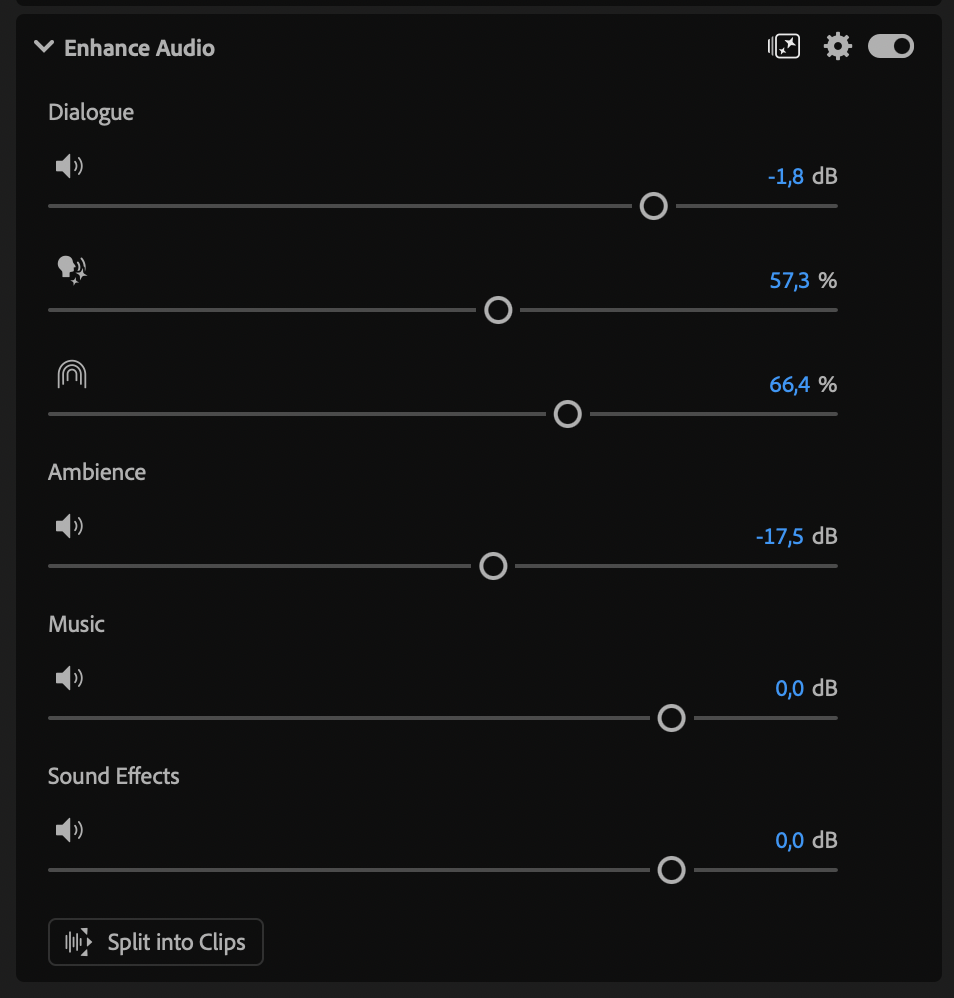
Generate Music and Generate Soundscape are still beta, and the distinction matters. Music uses the Firefly Music model with tempo and loop controls and commercial sync rights attached. Soundscape reads up to 15 seconds of video with no prompt at all and produces four pre-mixed tracks, two ambience and two effects layers, each with four variations. Hands-on reviewers report Soundscape results that come back out of sync and off the mark. Treat it as a sketch pad, not a finished mix. The quieter wins are the Enhance Audio beta, crosstalk separation and automatic ducking: independent control over dialogue, music, ambience and effects inside a single clip, without re-recording.
Where it does not fit yet
- Hero footage that runs long. A hundred seconds a month evaporates fast.
- Anything with a locked budget. Partner pricing reveals itself per shot, which is the opposite of predictable.
- A mix that has to be right on the first pass. Soundscape is beta and inconsistent.
- Any job where the shot already exists. If a clip just ends too soon, Generative Extend stretches it. If the footage is sitting in your media bin, finding it is faster than generating it.
A sane first session
1. Update to 26.5 and open a real project with a real gap.
2. Double-click the gap, pick Firefly, add Previous and Next frames, generate two seconds. Note the credit cost.
3. Repeat with Veo 3.1 on the same gap. Compare in the cut, not in a vacuum.
4. Try Generate Sound Effects on a missing foley moment, with a scratch voice for timing.
5. Watch the credit counter. Then decide what belongs on the meter.
Sources
- [1] Adobe — “Generate and create directly in your timeline with new AI-powered innovations in Premiere and After Effects” (Sep 8, 2026)Read source
- [2] Adobe Help — “Generate video and audio in Premiere (beta)”Read source
- [3] Adobe Help — “Generative Media Tool FAQ”Read source
- [4] Full Stack Creators — “Adobe Put Five AI Video Models Inside Premiere's Timeline”Read source
- [5] rctv — “AI Video Weekly Roundup — September 14, 2026”Read source
- [6] No Film School — “Adobe Unveils New Generative Media Tool in Premiere, Plus More AI-Powered Updates”Read source
- [7] Red Shark News — “Premiere's new AI tools, explained by Adobe”Read source